Sometimes you don't want the whole PDF — you just want a few pages out of it. Maybe someone sent you a 40-page report and you only need the summary on page 1 and the chart on page 12. Or you scanned a stack of documents into one file and now need to pull out a single form. Tekivex's Split PDF tool lets you extract exactly the pages you want into a new PDF, right inside your browser, without uploading anything.
Here's how to do it, including the simple syntax for choosing which pages to keep.
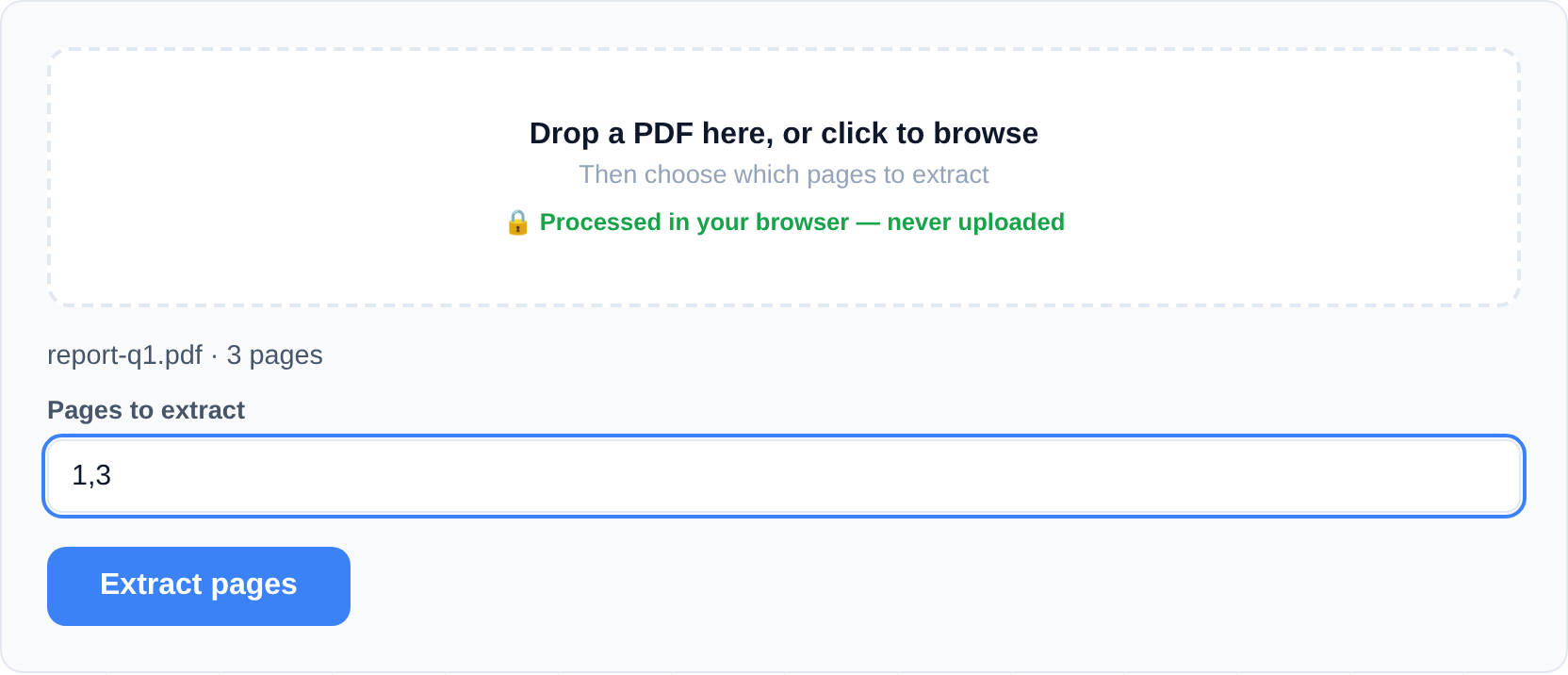
How to split a PDF and extract pages
- Open the Split PDF tool. There's nothing to download or install.
- Drag your PDF onto the drop area, or click to browse for it. Drop just one file — this tool works on a single PDF at a time.
- The tool reads your file and shows you its page count, so you know the valid range to pick from.
- In the Pages to extract field, type the pages you want using the syntax below.
- Run the extraction. The pages you chose are pulled into a brand-new PDF.
- The new file downloads to your device, containing only the pages you asked for.
The page syntax, explained
You can mix single pages and ranges, separated by commas, in any order you like:
3— just page 3.2-5— pages 2, 3, 4 and 5.1,3,7-9— pages 1, 3, 7, 8 and 9.9-7— pages 9, 8 and 7, in reverse order (a backwards range flips the pages around).
Because order is respected, 3,1 gives you page 3 followed by page 1 — handy for reordering as you extract.
Good to know and limitations
- One output file per run. Each run produces a single new PDF with your selected pages. If you need several separate files, just run the tool again with different page numbers.
- Out-of-range pages show an error. If you ask for page 50 in a 10-page document, the tool tells you rather than guessing. Check the page count it displays and adjust.
- Encrypted PDFs must be unlocked first. If your file is password-protected, remove the password in a PDF reader and save an unlocked copy before splitting.
- It's the mirror image of merging. If you instead want to join files together, use Merge PDF. For heavier editing, Pyntra is our full editor.
Practical uses for page extraction
The most common reason to split a PDF isn't technical at all — it's about sharing less. A few examples of where extracting pages beats sending the whole file:
- Sending one chapter, not the manual. Product manuals and reports routinely run to hundreds of pages. Extracting the ten pages someone actually needs makes the file smaller and their life easier.
- Isolating the signature page. Contracts are often signed on one page. Extract just that page to send for counter-signature, then use Merge PDF to reassemble the fully signed document.
- Separating combined scans. If a scanner batched several receipts or letters into one PDF, extract each document's page range into its own file — run the tool once per document.
- Reversing a backwards scan. Some sheet-fed scanners output the last page first. A reverse range like
20-1puts the whole document back in reading order in one pass.
Troubleshooting
- "Page out of range" error — the tool shows the document's page count as soon as the file loads; every number you enter must fall inside it. Typos like
1,3,70on a 7-page file are reported rather than silently ignored, so nothing unexpected ends up in your output. - The file won't load — password-protected PDFs must be unlocked before splitting. If you know the password, remove it in your PDF viewer's export options first.
- You need several output files — the tool builds one PDF per run. Run it once per page set; since nothing uploads, each pass takes only seconds.
Frequently asked questions
How do I extract just one page from a PDF?
Type that single page number in the Pages to extract field — for example 4 — and run it. You'll get a new PDF containing only page 4.
Can I extract pages that aren't next to each other?
Yes. Separate them with commas, like 1,3,7-9. You can freely combine individual pages and ranges in a single request, and they can be in any order.
Can I reverse the order of pages?
Yes. Write a range backwards, such as 9-7, and those pages come out in reverse. You can also list single pages out of order, like 5,2,1, to rearrange as you extract.
Are my files uploaded anywhere?
No. Your PDF is opened and split entirely within your browser on your own device — nothing is sent to a server. To learn how in-browser tools protect your privacy, see why browser tools keep files private.
Your files never leave your browser — splitting happens entirely on your own device.