Ever tried to email a PDF and been told it's too big? Scanned documents are the usual culprit — a few pages of scanned paper can balloon into a file too large for an email attachment or an upload form. Tekivex's Compress PDF tool shrinks bulky PDFs right inside your browser, with no uploading. It's genuinely good at slimming down scans and image-heavy files, and it's honest with you about the trade-off involved, which we'll explain plainly below.
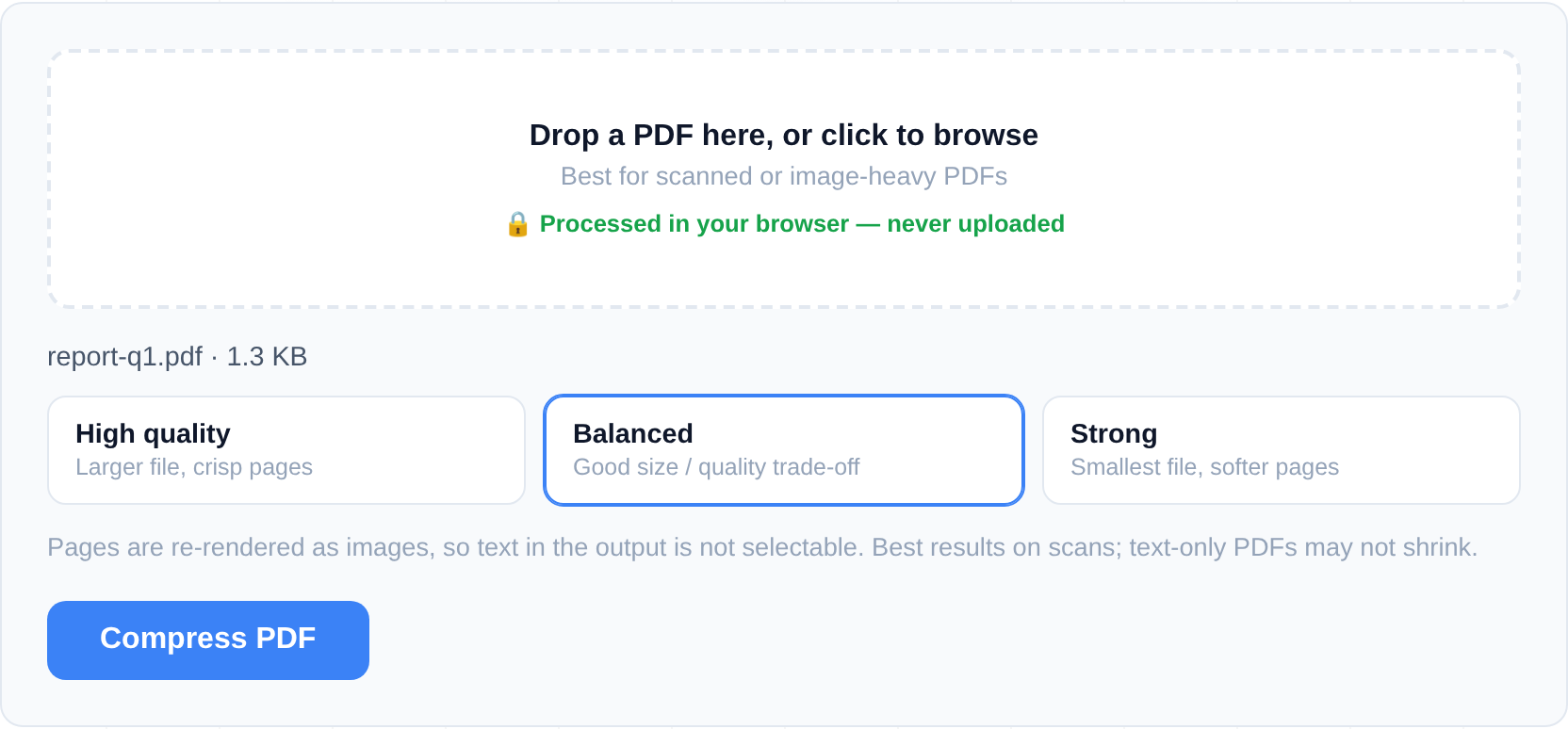
How to compress a PDF
- Open the Compress PDF tool. Nothing to install or sign up for.
- Drag your PDF onto the drop area, or click to browse. Add one file.
- Choose a quality level: High (gentlest compression, best-looking pages), Balanced (a middle ground), or Strong (smallest file, more visible quality loss).
- Run the compression. The tool re-renders each page as an optimised image and repacks it into a smaller PDF.
- Check the before-and-after file sizes the tool shows you, so you can see exactly how much you saved.
- Download your compressed PDF.
If the result isn't small enough, try again with a stronger setting; if it looks too rough, step back toward High.
Good to know and the important trade-off
Here's the honest part. To shrink your file, Compress PDF re-renders each page as an optimised JPEG image and repacks the document. That's why it works so well on scanned and image-heavy PDFs. But it has a real consequence worth understanding before you use the result:
- The text becomes non-selectable and non-searchable. Because each page is turned into an image, you can no longer highlight, copy, or search the text in the compressed file. If you need searchable text, keep your original.
- Text-only PDFs may not shrink much. A document that's mostly plain text has little image data to optimise, so it might barely get smaller — or not at all. The tool shows the real before/after size and warns you when it couldn't make the file smaller, so you're never misled.
- Encrypted PDFs must be unlocked first. Remove any password in a PDF reader before compressing.
- Best for: scanned contracts, image-packed reports, photo-heavy documents — anything too big to attach.
For documents where keeping searchable text matters, or for more control over your files, Pyntra is our fuller editor. And if the file is large because it simply has many pages you don't all need, Split PDF may solve the problem instead.
Why file-size limits exist — and what usually fits
Most compression jobs are driven by someone else's upload cap. Email providers commonly reject attachments over 20–25 MB. Government portals, job application systems, and university submission sites frequently cap uploads at 2–10 MB. A ten-page phone-scanned document can easily weigh 15–30 MB, so scans are the files that hit these walls hardest — and they're also the files this tool shrinks best, because photographic page images have huge amounts of removable detail.
A rough guide to choosing a setting against a target size: start with Balanced. If the before/after readout shows you're still over the limit, re-run the original at Strong. If Balanced already gets you far under the limit, High may give you a visibly crisper document that still fits. Because the tool always shows both sizes before you download, you never have to guess.
When compression is the wrong tool
Two situations call for a different approach. If your PDF is mostly text and still large, the bulk is usually embedded fonts or an inefficient export — rasterising it here will cost you selectable text without saving much; re-exporting from the source program at lower quality is the better fix. And if the file only needs to be split up rather than smaller — say a portal accepts multiple files — extracting the needed pages with Split PDF keeps full quality while cutting size proportionally.
Frequently asked questions
How much smaller will my PDF get?
It depends on the file. Scanned and image-heavy PDFs often shrink dramatically; text-only PDFs may shrink little or not at all. The tool always shows the actual before-and-after size so there's no guesswork, and it warns you if it couldn't reduce the file.
Why can't I select or search the text after compressing?
Because compression works by turning each page into an optimised image. That image looks like your page but no longer contains selectable text. If searchable text is important, keep your original file and only share the compressed copy where that doesn't matter.
Which quality setting should I choose?
Start with Balanced. If you need the file even smaller and can accept some visible quality loss, use Strong. If the pages need to stay crisp, choose High. You can re-run with a different level anytime.
Is my PDF uploaded to a server?
No. All the compression happens in your browser on your own device — your file is never sent across the internet. See why browser tools keep files private for how that works.
Your files never leave your browser — compression happens entirely on your own device.